Overview
This article is a step-by-step guide to setup parental control restrictions on Android smartphones and tabs like the Kindle Fire and Samsung Galaxy tablet.
Summary: Setup Mobicip Parental Control in Child mode on your child's Android phone or tab. On your own iOS or Android phone, enable Mobicip in Parent mode.
Introduction
Mobicip is an integrated parental control app that allows you to restrict screentime, Internet, apps and videos on your family's devices and computers. The same app doubles up, in parent mode, as the remote control from your phone where you can make changes or take instant actions.
Parent Mode Setup
Download Mobicip from Google Play on your Android smartphone or tablet and open the app to select Parent as the primary user.

Login with your Mobicip account (or create one).

Follow the prompts to create an account.
Select ‘Add Children’ to create a persona for each of your children. You will need to setup atleast one child at a minimum.

Create the persona and set the age, and Mobicip will automatically configure age-appropriate restrictions. Learn more

You may customize the restrictions now or save and revisit this later.

From the menu, select Activity and flip to the view with the QR code.
Flip through the dashboard until you see a QR code.

Child Mode Setup
On your child's Android smartphone or tab, download Mobicip from Google Play, select Child as the primary user, and scan the QR from your parent device.
The device registers with your account and any parental controls you have selected will be applied immediately. If you do not have the QR code handy, just login with your Mobicip account.
Select the child who will be using this device.

You will see a number of permissions pop up as the device registers with Mobicip. Allow each of these permissions to ensure that Mobicip works correctly.

You should see a confirmation screen. Mobicip is now protecting your child's device.

Mobicip Safe Browser Setup (deprecated)
Rest of this article is obsolete and is here only to help customers with older devices that cannot be updated.
Mobicip offers a best-selling alternate browser that enables parental controls on your child's Android device. It is simple to setup and works anytime anywhere! The Mobicip Safe Browser is protected by a mobicip.com account setup by the parent. The Safe Browser is now available for download from Google Play. Follow the steps below to download and install the Safe Browser. If you have already downloaded the Safe Browser, skip to step four below.
1. On your Android device, launch Google Play, and search for Mobicip. Select and install the Safe Browser app.
Note: Kindle Fire users will not have access to Google Play. You will need to 'sideload' Mobicip. Follow the steps here

2. If you have successfully installed the app, you should be able to find the icon on your apps screen.

3. Launch the Safe Browser. If you do not have an account, touch Sign Up and register.

4. Once your account is created, you can use it to enable the Safe Browser app. (NOTE: this step can be automated when you deploy in bulk. Please contact support for assistance.)

5. Now select the filtering profile you wish to apply to this device.

6. Optionally, setup a 4-digit passcode for authentication. This can be used to lock / unlock apps and other restrictions, in lieu of the username / password.

7. When done, you will see the browser open up. You can now enter the URL you wish to visit.

General Parental Control Restrictions Setup
The Mobicip Safe Browser automatically enforces restrictions to ensure that Mobicip is the only browser available. All other browsers will be locked automatically.
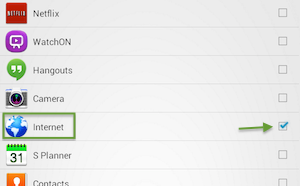
No action is necessary at this time. To adjust your restrictions in future, open the browser's menu, and select Settings > Mobicip > App Restrictions.

Congratulations! Your Android smartphone or tablet is now setup with Mobicip's Internet filter. Visit mobicip.com from any computer and login using your Mobicip.com account to configure the filtering and monitor the browsing activity. You may find these video tutorials helpful to setup your filtering and to monitor the activity reports.
Please report all problems by email or on this forum thread or through the contact form. We are actively listening for your feedback and promise to address any issues asap.