
Overview
This article describes how to
- setup Mobicip parental controls on Windows computers
- enable Mobicip parental controls on multi-user Windows PCs
Before you Begin
Please ensure that
- You are logged into the Windows computer as an administrator.
- Your Windows computer has Windows 7, 8 or 10. Mobicip does not support older versions and Domain User/Active Directory setup.
- You created an account on mobicip.com and added your children to track their activity accurately.
- Mobicip won’t get installed if you have Kaspersky Internet Security or ESET anti-virus installed on your device. Please uninstall them before proceeding to install Mobicip.
- The default Windows 10 parental controls are not enabled
Download Mobicip for Windows using the links below:
Please note that Mobicip is not available on the Microsoft Store and you need to install it from this webpage.
| Mobicip for Windows - 32-bit |
| Mobicip for Windows - 64-bit |
Not sure if your Windows is 32 or 64-bit?
Step-by-Step Instructions
Sign Up
Go to mobicip.com and create an account by clicking 'Login'. Once the account is created, you will see a confirmation and receive an email.
Install Mobicip's Parental Controls
Download Mobicip using the link above. Launch the installer and allow admin access to proceed with installation.
Note: If the PC is shared among your children, we recommend that you create separate Windows user accounts for each of them with standard access (not administrator access). We recommend parents to have an admin account on the computer. The above recommendations are to ensure that your children do not access Control Panel and uninstall Mobicip. In case your child is the sole user of the computer and needs admin access, please proceed to the next step.

Read and agree to the terms of the software license agreement.

Let the installation complete.

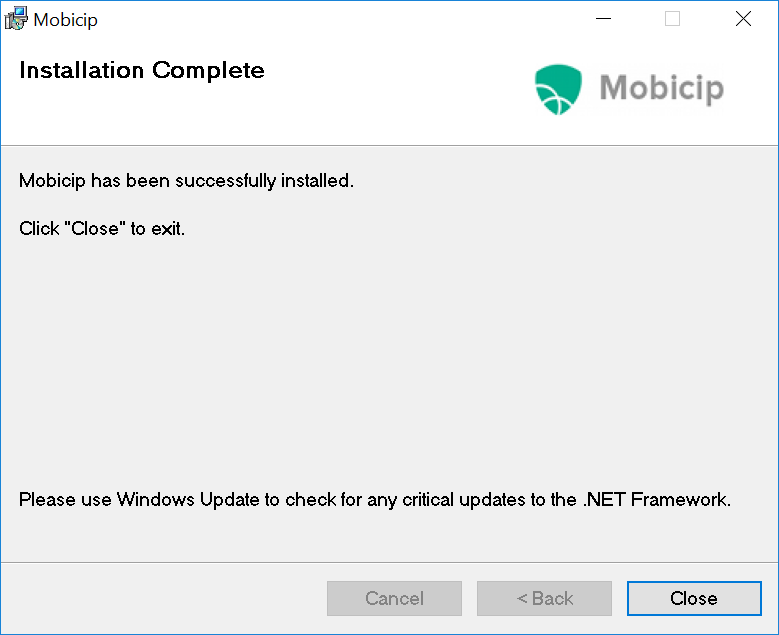
Once the installation is successful, close the installer and restart the computer (you can restart later too if you wish).

You should see the Mobicip icon on the desktop.
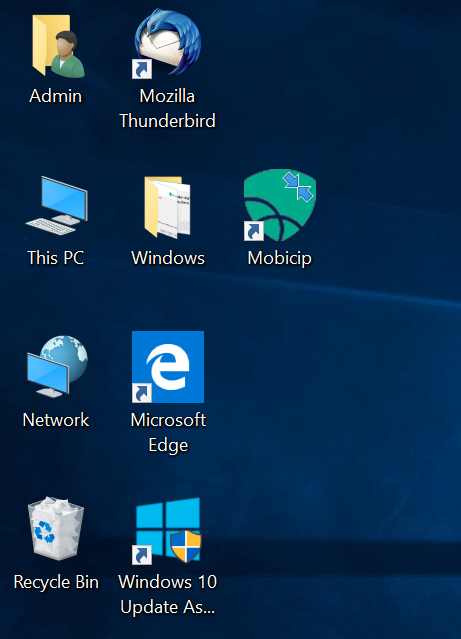
Double click and login using your Mobicip account (you have the option to create one if you haven't already. Also, add children and customize their Mobicip parental control settings).

Let the device registration process complete.

Once the registration is complete, continue to the next step.
You will see a list of Windows users on your device - you can map each Windows User Account to their relevant Mobicip child user. In case you haven't added children, please login to your Mobicip.com account on any browser and add Child Profiles. Select the specific Windows User Account for which you wish to enable Mobicip filtering.
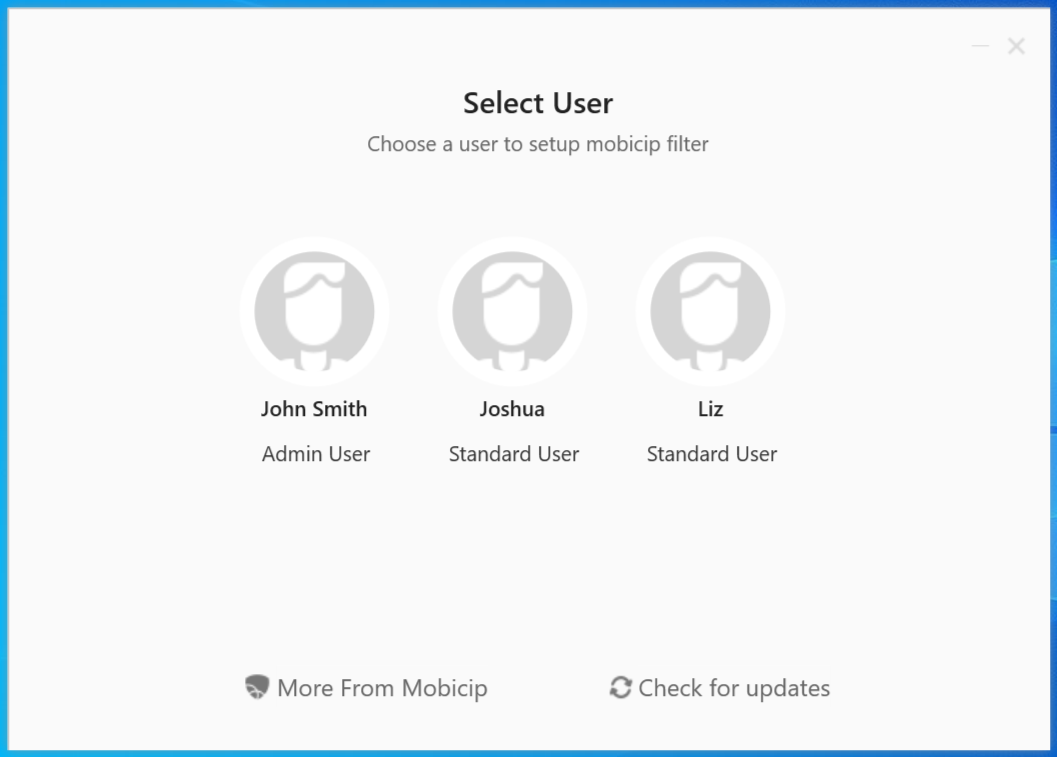
Choose the Mobicip Child profile to be mapped to the selected Windows User Account and click on Save.


Repeat the same steps for the other user accounts (if any) you have on your Windows device.


That's it! Once your child logs in to the Windows PC with their user account, the filtering settings you chose for him/her will be applied.

Congratulations! Your PC is now setup with Mobicip's Parental Controls.

